 PennyPost
Use these onboarding email templates to help new SaaS customers take a useful next step. Each draft includes a subject, preview text, and the conditions under which it belongs in your sequence.
The examples are original and illustrative. They use a fictional project-planning app called Fieldwork, with a fictional sender named Alex. They are not emails taken from a real company or templates with measured conversion results.
Replace every detail with something your app actually supports. A friendly draft that promises the wrong feature creates work for your support team and confusion for the customer. The sending conditions matter just as much as the words.
If you have not decided what your sequence should accomplish, start with the five-email onboarding plan. This page is the place to turn that plan into usable copy.
Choose the template that fits the moment
A new signup and an active customer do not need the same message. Choose based on where the person is now, and remove drafts that solve a problem your customers do not have.
| Template | When it helps | Main action |
|---|---|---|
| Welcome | Someone has just signed up | Begin the first useful task |
| Setup reminder | A necessary step is incomplete | Resume that step |
| First-result follow-up | Someone completed the first meaningful action | Make the result useful again |
| Team invitation | The product becomes more useful with a colleague | Invite the right person |
| Feature introduction | A feature solves a problem the user has reached | Try that feature |
| Personal help | Someone is stuck and a reply could resolve it | Describe the obstacle |
| Trial reminder | A real trial deadline is approaching | Review the account’s options |
You can combine or omit roles. For example, a solo writing tool may have no reason to send a team invitation. A product without a trial should not borrow the trial reminder just to create urgency.
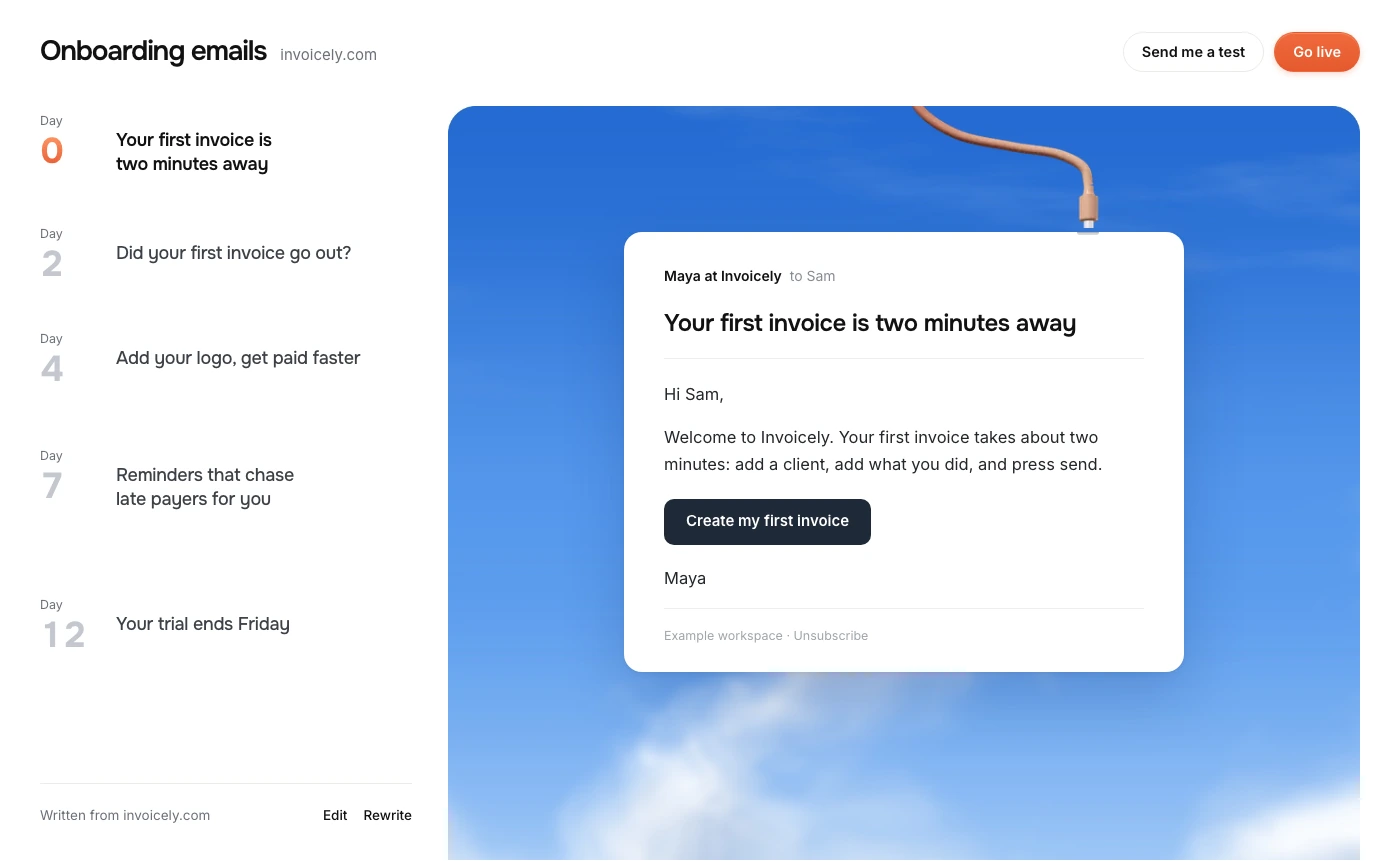
The tokens shown in square brackets, such as [project link], are editing placeholders. They are not PennyPost merge-field syntax. Replace them before sending. If your email tool supports personal fields, use its documented syntax and set fallbacks for missing values.
1. The welcome email
Send after the signup is complete and after any required address verification. Help the person do one thing they already came to do. A welcome can be warm without requiring a long introduction to your company.
Subject: Create your first Fieldwork project
Preview: Start with the next piece of work on your list.
Hi [first name],
Welcome to Fieldwork. Start by creating a project for something you’re already working on. Add the next task and a due date; you can fill in the rest later.
[Create a project]
If you’re just exploring, try a small project of your own before inviting anyone else.
Alex at Fieldwork
The draft gives the customer permission to start with incomplete information. That is useful only if the product allows it. If your app needs a data connection before anything works, make that connection the first action instead.
Point the button to the project creation screen when possible. A homepage link forces the recipient to find the action again. If authentication is required, test the return path after sign-in.
For a more personal version, replace the first paragraph with a sentence about why someone uses the app: “If you’re using Fieldwork to keep client work out of your inbox, create a project for the client you’re working with this week.” Avoid guessing the customer’s role unless they actually gave you that information.
Stop or change this message when: signup failed, required verification is incomplete, or this is a duplicate signup event for the same account. A returning member joining a second workspace may need an invitation confirmation rather than another introduction to the product.
See the welcome email guide for more examples and subject lines.
2. The setup reminder
Send this when a useful step remains incomplete after a reasonable delay. The example assumes the person created an account but has not created a project.
Subject: A small project is enough to get started
Preview: You can add the rest of the plan later.
Hi [first name],
You can begin your first Fieldwork project with a name and one task. You don’t need the whole plan ready.
If you have work due this week, add that task first. You’ll have somewhere to put the next one when it comes up.
[Create my first project]
Having trouble opening your workspace? Reply with what you see and we’ll help.
Alex
This email addresses a specific possible obstacle: the user thinks they need a complete plan before creating a project. It does not claim to know why they stopped. That distinction lets you offer useful advice without making the message sound invasive.
If support conversations reveal a different obstacle, rewrite around it. For an analytics app, the problem may be locating the tracking snippet. For an invoicing app, it may be uncertainty about sending a test invoice. The best reminder contributes information the first email omitted.
Stop or change this message when: a project has already been created, the account has been closed, or another team member has completed the shared setup. Recheck eligibility at send time. A person can make progress while your email is waiting in a queue.
Use the behavioral email setup guide if you need a way to keep those conditions current.
3. The first-result follow-up
Send after a confirmed product action that has a useful next step. In this example, the user created a project and added a task. The follow-up helps them return to that work rather than introducing an unrelated feature.
Subject: Keep your next task close
Preview: Use your project link when work starts again.
Hi [first name],
Your first project is ready. When you come back to the work, open it here to see the next task and update what’s done.
[Open my project]
You can bookmark the project if you’d like a direct route back to it.
Alex
The line “Your first project is ready” requires confirmation that the relevant project exists. If you only know that a user visited the editor, you do not have enough evidence for this draft.
Personalized links need special care. Build the destination from a validated project identifier and your app’s trusted origin. Do not let an arbitrary value supplied by a user become the button’s destination. For a simpler first version, use a stable projects page that opens only after the recipient authenticates.
The next step should fit the original result. A document app might help someone share a completed draft. A monitoring tool might suggest setting one relevant alert after the first real data arrives. Do not turn every completion into an invitation to explore the entire product.
Stop or change this message when: the object no longer exists, the user has lost access, or they have already performed the suggested next action. Account permissions can change after the original event.
4. The team invitation email
Use this when collaboration is part of the customer’s intended outcome. It should not be an automatic step for every signup. Someone testing a personal workflow may have no colleague to invite yet.
Subject: Working on this with someone else?
Preview: Invite them to the project when you’re ready.
Hi [first name],
If this project belongs to your team, you can invite a colleague so they can see the tasks and update their own work.
Open the project’s sharing settings, choose their access level, and send the invitation.
[Open sharing settings]
Working on your own? You can keep the project private and skip this step.
Alex
Be explicit about permissions. “Invite your team” is incomplete advice when the app offers viewing, commenting, and editing roles. Explain the choice in the product or link to a short help article that does.
Pricing also matters. If another seat adds a charge, do not write copy suggesting invitations are always free. Check how the billing flow handles new members and include the relevant explanation where the user makes the decision.
Stop or change this message when: the workspace already has the necessary collaborators, the recipient cannot invite members, or the app has evidence that the account is for solo use. Avoid repeatedly asking ordinary members to perform an administrator-only task.
5. The relevant feature introduction
Send a feature email after the customer reaches a situation where the feature helps. This example assumes recurring tasks are supported and the user is managing work that repeats.
Subject: Reuse the tasks you do every week
Preview: Set up a repeat instead of rebuilding the list.
Hi [first name],
If you use the same task list each week, you can make those tasks repeat in Fieldwork.
Open a task, choose its repeat schedule, and check the next due date before saving. The next copy will follow the schedule you set.
[See how repeating tasks work]
For a one-off project, you can leave everything as it is.
Alex
The phrase “if you use” makes this draft suitable when you have a plausible reason to suggest the feature but do not know the exact workflow. Stronger personalization requires better data. “You recreated the same task four times” should appear only if that statement is accurate, appropriate to disclose, and helpful.
Feature emails can become documentation dumps. Keep the email focused on the reason to use the feature and one way to begin. Put detailed settings, edge cases, and screenshots on the destination page.
Stop or change this message when: the user has already configured the feature, their plan does not include it, or it does not fit their use case. A paid feature can still be introduced honestly, but the email should say that access depends on the plan.
6. The personal help email
Use this when someone has had time to try the app but remains stuck. The aim is a useful reply. It needs a monitored reply address and a support process that can follow through.
Subject: Where did you get stuck with Fieldwork?
Preview: A short reply is enough.
Hi [first name],
If you haven’t had a chance to set up your project, that’s fine. If you tried and something got in the way, what happened?
You can reply with the step you reached or the message you saw. Please leave out passwords and private client details.
We’ll read your reply and help you find the next step.
Alex and the Fieldwork team
Do not promise an instant reply unless you provide one. A small team can state its actual support hours, or avoid giving a response-time promise altogether.
This template deliberately uses cautious language about inactivity. Missing product events can mean the integration failed. They do not always mean the customer did nothing. If your tracking is incomplete, asking what happened is more respectful than asserting a detailed history you cannot verify.
For a high-touch product, you might offer a setup call instead. Use a booking link only if the team has capacity and the customer can reasonably benefit. A scheduling tool with a simple first task probably does not need to push every new user into a meeting.
Stop or change this message when: an existing support conversation is in progress, the customer has completed setup, or the message would duplicate a recent personal reply from your team.
7. The trial reminder
This version is for a fictional trial that requires no payment card, ends without an automatic charge, and keeps saved projects in a read-only state. Do not use it for a product with different billing or data-retention behavior.
Subject: Your Fieldwork trial ends on [date]
Preview: Review your options before editing access changes.
Hi [first name],
Your Fieldwork trial ends on [date] at [time and timezone]. You won’t be charged automatically.
After the trial, you’ll be able to view your saved projects, but editing will require a paid plan.
[Review plans]
If you’re still checking whether Fieldwork fits your work, reply with what you need to try.
Alex
Write the consequences before trying to make the copy persuasive. If the account converts to paid automatically, explain the charge and the cancellation path. If it switches to a free plan, explain the limits that change. If the trial has been extended, the old deadline must be replaced.
The trial expiration email guide has separate drafts for those scenarios, including an already-expired trial and a request for more time.
Stop or change this message when: the account upgrades, cancels, receives an extension, or otherwise leaves the eligible trial state. A tag added once at signup is insufficient for a deadline that can change.
Adapt the templates to your own product
Take one draft at a time. Read it next to the relevant screen in your app, using a new account rather than your administrator account. That catches instructions that assume access or setup a beginner will not have.
- Replace the product name, sender, and greeting with accurate values and a safe fallback.
- Replace the task and feature details with the exact actions your product supports.
- Set the button’s destination and confirm it works after signing in.
- Write down the send condition and the condition that suppresses the message.
- Send a test to yourself and read it on a phone before enabling the flow.
You can also generate a first set of emails from your app’s URL. PennyPost uses your public site to draft the sequence. You still need to review factual details, check the links, and connect the product data used by your sending conditions.
Personalization should reduce confusion. Using a person’s real first name can help, but a clear button and relevant task matter more than repeating their name. If the name is missing, “Hi there” reads better than a broken token or a blank comma.
For account-based products, be careful with names like “your project” or “your subscription.” The recipient may be a member of a team account whose billing belongs to someone else. Send administrative instructions to someone who can perform them.
Check the email beyond the copy
A launch review should include the sender, the recipient’s permission to receive the message, and how they opt out. A strong subject cannot compensate for an unverified domain or repeated unwanted sends.
Google’s sender guidelines describe authentication and unsubscribe requirements for Gmail delivery. Check the requirements that apply to your sending volume and message category. A visible unsubscribe link and a working reply address serve different purposes; one does not replace the other.
Also check the preview text in a real inbox. If you leave it empty, the client may display navigation, footer text, or the start of a link. Write a useful sentence that adds information beyond the subject.
Try the email with images blocked. The main task and button should remain understandable. A large screenshot is helpful only if it clarifies a step; put important instructions in live text so the reader can access them without downloading the image.
Questions about using these templates
Can I copy these onboarding emails?
Yes. Adapt the drafts for your product and replace the fictional details. Read the conditions and the commentary as well as the quoted copy. The template’s usefulness depends on sending it to the right person at the right point.
Should I send all seven emails?
No. These are seven situations to choose from, not a mandatory schedule. A customer who completes setup quickly should skip setup reminders. A solo account may never need the invitation email. Use the sequence guide to choose a smaller first version.
Should the email look like a personal message?
A short, lightly styled email is a reasonable choice for setup help. It still needs to identify the actual sender and include the information required for its purpose. Avoid pretending an automated message is an individual conversation, including misleading reply-style subjects.
How long should an onboarding email be?
Make it long enough to explain one action and remove the obstacle to doing it. Most drafts on this page are short because the details belong in the app or help page. A complex setup step may justify more explanation, but it should still have one clear job.