 PennyPost
Behavioral emails are messages sent because of something a customer did, or because an expected action has not happened yet. For a SaaS product, that might mean a setup reminder after signup, a useful next step after the first project, or a trial message that stops when the account upgrades.
Start with one behavior: the action that shows a new user has received their first useful result. Your first automation can be a delayed reminder that checks whether that action is still incomplete before sending.
This guide explains the terms in plain language, shows a small event plan, and includes PennyPost API examples checked against the current implementation. Product situations and email drafts are illustrative. You can follow the planning sections without writing code; the integration examples are for whoever connects your application.
If you need the overall email plan first, read the SaaS onboarding sequence guide. For ready-to-adapt copy, use the onboarding email templates.
How behavioral emails differ from a fixed schedule
A fixed schedule sends the same follow-ups after the same delays. For example, every new account receives a setup reminder two days after signup. That works until someone finishes setup on the first day and still receives the reminder.
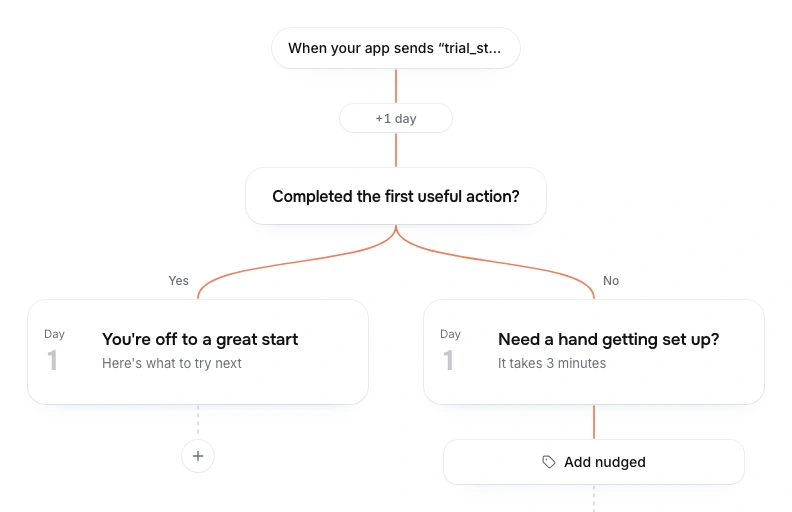
A behavioral flow adds a decision. After the delay, it asks whether setup is complete. If it is, the reminder is skipped or replaced with a relevant next step.
You can still use time delays. The difference is that time alone does not determine the message. A delay gives the customer a fair chance to act; a condition determines whether the message is still useful.
Consider a fictional reporting app called Chartroom. A user creates an account, connects a data source, and builds a first report. Sending instructions to connect a source after that report exists is unnecessary. A useful follow-up might explain how to share the report, provided the user has permission to share it.
The system does not need to infer the customer’s thoughts. It needs a small amount of reliable product data and clear rules about what to do with it.
Learn the four terms you need
An event records something that happened. data_source_connected is an event. It should mean the connection actually succeeded, rather than that someone merely opened the connection page.
A trigger starts an automation. Receiving a trial_started event might start a trial onboarding flow. The trigger determines entry, not everything that happens afterward.
A condition checks whether something is true now. “Does this contact have the activated tag?” is a condition. Conditions let a flow choose a path after waiting.
A suppression rule prevents an unwanted message. Examples include an unsubscribe, an address that cannot receive mail, or an upgrade that makes a trial reminder irrelevant.
You will also encounter tags and fields. A tag is a label, such as activated. A field stores a value, such as plan: free or a trial end timestamp. Choose the representation that makes the sending rule understandable and easy to keep current.
The important distinction is between history and current state. An event says a trial began. A current field says when that trial now ends. An extension changes the second fact even though the original event remains true.
Plan a small set of events
You do not need to track every click to build useful onboarding. Begin with the few events that affect a sending decision.
For Chartroom, a first plan could be:
| Event | What it means | Possible use |
|---|---|---|
account_created |
An eligible account was created successfully | Begin the welcome flow |
data_source_connected |
A real connection completed | Stop connection reminders |
report_created |
A usable report was saved | Mark the first result and offer a next step |
subscription_started |
Paid access became active | Stop trial sales reminders |
trial_extended |
The authoritative trial deadline changed | Recalculate deadline-based messages |
These are suggested names for a fictional application. They are not events PennyPost collects automatically. Your application decides when they happen and sends the relevant data.
Write a one-sentence definition beside each name. “Report created” can mean a blank object was inserted in a database or a useful report finished processing. Pick the meaning that supports the customer’s task. If both matter, name them separately.
For products with background jobs, record success after the job completes. A file upload being accepted does not prove the import succeeded. Sending a congratulations email before a failed import finishes can be worse than sending nothing.
Choose the identity carefully too. A person, a workspace, and a subscription are different objects. If a colleague finishes shared setup, the account state should reflect that without pretending every member performed the action themselves.
Build your first flow
Use the setup reminder as your first behavioral automation. It is small enough to test and useful enough to justify the integration.
- Start the flow when an eligible new contact is added.
- Send the welcome email with one useful first action.
- Wait long enough for the customer to attempt the task.
- Check the current completion state.
- Send the reminder only on the incomplete path; finish or use a different next step on the complete path.
One reliable decision
Put the condition after the wait. Checking once at signup only tells you that setup was incomplete at signup. It says nothing about whether the user completed it during the delay.
In PennyPost, a workflow can use a contact-added or event trigger, wait steps, and branches that check contact conditions such as tags. You still need to configure the branch and update those tags from your application. An event name does not automatically become a rule for every pending email.
For a first release, finish the complete path without sending another message. You can add a thoughtful next-step email later. That keeps the test focused on whether the reminder is appropriate.
Connect product progress to PennyPost
The following examples run from a backend or a local test environment you control. Keep the API key on the server, in a secret store or environment variable. Do not put it into a public website, browser bundle, or shared screenshot.
Replace your-newsletter-slug with the slug of the relevant PennyPost audience. The API calls use the field name newsletter even when you are using that audience for app onboarding. The maya@example.com address is an example to replace with a test address you control.
Record an event for an existing contact
This request records report_created for a contact already present in the audience. An active workflow with a matching event trigger can begin for an eligible active contact.
curl --request POST 'https://usepennypost.com/api/v1/events' \
  --header "Authorization: Bearer ${PENNYPOST_API_KEY}" \
  --header 'Content-Type: application/json' \
  --data '{
    "newsletter": "your-newsletter-slug",
    "email": "maya@example.com",
    "event": "report_created",
    "properties": {
      "source": "app-backend"
    }
  }'
The endpoint returns an accepted response when the event has been recorded and the subsequent workflow work can proceed. That does not mean an email has already reached the recipient. A missing contact returns an error unless you explicitly request contact creation with the supported createContact option.
For this example, leave contact creation off. Creating a new contact can also start contact-added workflows, which may produce an unexpected welcome if you only meant to record progress. Decide which operation your app needs before enabling that option.
Event properties describe the event. In the current API, sending report_created does not automatically add an activated tag to the contact. If a delayed branch checks that tag, update the contact separately.
Update the state used by the reminder
This request adds the activated tag to an existing contact. Configure your reminder branch to skip the message when that tag is present.
curl --request PATCH 'https://usepennypost.com/api/v1/contacts' \
  --header "Authorization: Bearer ${PENNYPOST_API_KEY}" \
  --header 'Content-Type: application/json' \
  --data '{
    "newsletter": "your-newsletter-slug",
    "email": "maya@example.com",
    "tags": ["activated"]
  }'
This updates contact data; it does not create a missing contact or change an unsubscribed contact back into an active one. Keep those actions separate from recording progress.
When both operations are needed, update the state the delayed reminder relies on before starting a new follow-up that assumes completion. Handle errors from both calls and retry deliberately. There is no single transaction spanning your product’s database and an external email API.
In production, use a durable background job or an outbox record so a temporary integration failure does not erase the update. An outbox is a saved “work to deliver” record in your own system. Your application can retry it after the customer’s action succeeds, without requiring the customer to repeat that action.
Keep retries from becoming duplicate messages
Network requests can time out after the receiving service accepted them. A retry may therefore represent the same business action twice. Decide how your integration identifies the original action before enabling high-volume sending.
The event example above does not include an idempotency key because the current endpoint does not expose one in that request contract. Do not assume that adding an arbitrary event_id property makes the server deduplicate requests.
Instead, track the delivery of the business action in your own integration. Use a unique identifier in your application’s outbox, record attempts, and make the retry policy explicit. This improves reliability but does not remove every ambiguous failure; workflow re-entry settings and reconciliation also matter.
PennyPost’s workflow re-entry setting controls whether a contact can enter a workflow again after a previous run. For a once-only first-result follow-up, keep re-entry disabled unless you have a specific reason to allow it. A repeated weekly report email needs a different design from a once-only onboarding milestone.
Billing integrations have the same issue. Stripe’s webhook documentation describes duplicate deliveries and event handling considerations. Your subscription state should remain correct when notifications arrive again or arrive in an unexpected order.
Keep credentials and unnecessary personal data out of event properties. A short event name and a few operational fields are usually enough to select the email. Avoid forwarding entire customer records simply because the API accepts a properties object.
Five useful behavioral email situations
Setup stopped before the first result
Start after signup, wait, and check the missing action. A helpful message might explain the minimum information needed to finish. The setup reminder template shows how to address a possible obstacle without pretending you know exactly why the person stopped.
The first result is ready
Send after a successful outcome, such as a processed import or saved report. Link to that result and suggest one relevant use for it. Verify access before including a personalized object link.
Collaboration becomes relevant
After the user creates something worth sharing, explain how to invite a colleague or share a link. Respect role permissions, seat charges, and users who intend to work alone. A team invitation is a poor default for every signup.
A trial deadline is approaching
Combine the current trial end with the current subscription state. Recheck both before sending and cancel outdated schedules when the deadline changes. The trial expiration guide includes the cases where the account upgrades or moves to a free plan.
A previously active customer stops returning
Choose an inactivity window that fits the product’s normal use. A tax preparation product and a daily task list have different rhythms. Avoid treating a normal gap as abandonment, and stop the return reminder if the user comes back before it sends.
For a first onboarding release, you do not need all five. Get the setup reminder working, observe the result, and add the next situation when it solves a known problem.
Test the behavior, not just the draft
A test email proves the message can render and reach your inbox. It does not prove the automation selects the right recipients. Test the conditions using separate accounts or contacts you control.
| Test case | Expected behavior |
|---|---|
| Signup with no progress | Welcome arrives; the setup reminder remains eligible |
| Completion during the wait | Current state is updated; the setup reminder is skipped |
| Unsubscribe before the next step | Marketing onboarding messages are suppressed |
| Repeated business event | Re-entry and integration rules prevent an unwanted repeat |
| Temporary API failure | The update is retained for retry and failures are observable |
Also test a deleted account, a changed email address, and a user who belongs to more than one workspace when your product supports those cases. The identity model determines whether a contact-level label is enough or whether you need account-specific state.
Shorten delays in a test flow so you can observe the path without waiting days. Keep test audiences separate from real recipients, and inspect the branch immediately before the email step. A tag visible in the contact record today does not prove it was present when yesterday’s branch ran.
Record enough logs to answer why a message sent or skipped. Useful fields include the workflow, contact identifier, step, evaluated state, and timestamp. Avoid logging secret keys or complete sensitive records. A useful audit trail describes the decision without collecting everything.
Measure whether the flow helps
Measure the action the message supports, within a defined window. For a connection reminder, track successful connections among eligible accounts. For a first-report message, track whether the customer returns to use or share the report, if that is the goal.
Use consistent denominators. All signups, deliverable contacts, and recipients of the reminder are different groups. Name the group when reporting a rate so the result can be interpreted.
Do not use email opens as the only behavioral signal. Apple’s Mail privacy controls can retrieve remote content without a corresponding read. Link clicks also need interpretation because automated security checks may follow links. Product completion data usually gives a clearer basis for setup conditions.
Watch for negative effects: repeated help messages, complaints, or an increase in support replies saying the task is already done. Those can expose stale state or confusing copy even when an email dashboard looks healthy.
If signup volume is small, avoid treating one week’s percentages as a reliable experiment. Read actual replies and inspect the setup process while gathering more observations. Better automation begins with an accurate understanding of what users are experiencing.
Questions about behavioral emails
Do I need a customer data platform?
Not for a first flow. Your backend can send a few events and contact updates directly to the email tool. A larger data system can help when many products need the same events, but it adds work that a simple setup reminder does not necessarily require.
Are behavioral emails always immediate?
No. Some should follow a confirmed event promptly, while others need a delay and a current-state check. Waiting gives the user time to act. The relevant behavior determines whether the email belongs afterward.
Does recording an event automatically stop a reminder?
Only if your automation is designed to use that event or the state derived from it. In the PennyPost example, the delayed branch checks a contact tag. Recording the event and updating that tag are distinct operations, and the flow must be configured accordingly.
What is the smallest useful setup?
A reliable signup, one completion state, and one delayed reminder with a skip branch. Use the free generator for an initial draft, review it against your product, and connect only the data needed to decide whether that draft is useful to each recipient.