 PennyPost
A SaaS welcome email should confirm that the user is in the right place and help them take one useful action. A clear subject, a direct link into the product, and an accurate explanation of what to do next are enough to begin.
The difficult part is choosing that action. “Explore the dashboard” leaves the decision to someone who has never used your app. “Connect your first website” gives them a task they can understand and finish.
This guide includes a complete welcome email template, four original product examples, and subject lines you can adapt. The examples use fictional products and people. They illustrate writing decisions rather than reported customer results.
For messages after the welcome, use the onboarding sequence guide and the full template library.
Decide what the first email needs to accomplish
Write down what someone has completed by the time this email arrives. Have they only entered an email address? Have they verified it, chosen a workspace, or started a trial? The answer changes the message.
Someone who has not confirmed their address may need a verification link before they can use the app. Someone who has joined a colleague’s workspace should see that existing workspace, rather than instructions to create another one.
Then name the earliest result they can realistically achieve. For a website analytics product, it may be receiving the first real visit. For a design tool, it may be saving a first draft. A developer API may need a successful test request before it can provide anything useful.
Choose a task that meets four conditions:
- It gets the customer closer to the reason they signed up.
- It is available to their role and plan.
- You can explain it without teaching the whole product.
- You can link to a place where they can actually begin.
If your app requires a complicated integration, the first action may be reading a short setup page or inviting the administrator who can finish it. Be honest about the dependency. Telling a new analyst to change company DNS records will not help if they lack access.
A welcome email template you can adapt
Use this structure as an editing draft. Square brackets are placeholders to replace, not a particular email platform’s merge syntax.
Subject: [First useful action] in [product]
Preview: [The smallest thing needed to begin.]
Hi [first name],
Welcome to [product]. To [useful outcome], start by [specific action]. You’ll need [one prerequisite, if there is one].
[Button: verb plus task]
[One useful clarification about testing, saving a draft, or getting help.]
[Sender name] at [product]
The anatomy of a useful welcome
SubjectCreate your first project
OpeningConfirm the signup and name the useful result.
The actionCreate a project
One clarificationTell them what they need, or how to get help.
For example, a booking product might turn “useful outcome” into “let someone book time with you,” and “specific action” into “publish your booking page.” The button would say “Set up my booking page.”
Keep the clarification concrete. “We’re here for you every step of the way” does not answer a question. “Your page stays private until you publish it” does, provided that is how your app works.
Choose a sender that the recipient can recognize later. “Rina at Clearbook” gives both a person and a product. If a team writes and handles the emails, use the team’s identity honestly. Do not promise a personal reply from the founder when another process handles the inbox.
Four SaaS welcome email examples
The same basic structure should produce different emails for different products. The recipient’s task determines the copy. Use the examples below to choose a shape, then verify every product detail before adapting it.
Example 1: a simple self-serve booking app
Clearbook is a fictional scheduling app. Its new user needs to publish a booking page before sharing it. The email does not introduce reminders, team scheduling, or reporting yet.
Subject: Set up your Clearbook booking page
Preview: Choose the hours people can book.
Hi Priya,
Welcome to Clearbook. Start by choosing your available hours and the length of a meeting. You can review the booking page before you publish it.
Create my booking page
Once it’s published, open the link in another browser window to check what a guest will see.
Rina at Clearbook
The preview text contributes an instruction instead of repeating the subject. The final sentence helps the customer verify the result themselves. It is a stronger use of space than another paragraph about how exciting the signup is.
The button should open the page setup screen. If the user already created the page during signup, send a variant about previewing or sharing it. The welcome must account for work the signup flow already completed.
Example 2: an app with a technical prerequisite
Signalwell is a fictional analytics product. It cannot show meaningful data until the tracking snippet is installed. A promise to “see your insights now” would be false for this account.
Subject: Connect your website to Signalwell
Preview: Your setup page has the snippet for your site.
Hi Noah,
Your Signalwell account is ready. To see visits from your website, add its tracking snippet to the site’s pages.
Open installation steps
If someone else manages the site, you can send them the installation page. After the snippet is live, visit your site and check Signalwell for the first event.
Em at Signalwell
This email acknowledges that the recipient may need another person. That can prevent several pointless reminders. If you know an integration is pending, the follow-up can explain how to hand off the work rather than repeating the same installation request.
The setup page should contain the technical details. Putting a long code block in the email creates formatting and copying problems on phones. The email’s job is to direct the right person to the right instructions.
Example 3: a developer tool
Packetbench is a fictional API testing product. Developers need an authenticated request that succeeds. Security and a verifiable response matter more here than decorative onboarding.
Subject: Run your first Packetbench test request
Preview: Create a test key in your workspace.
Hi Lee,
Welcome to Packetbench. The quickstart walks through one request against the test endpoint, using a key you create in your workspace.
Open the quickstart
Keep the key on your server or in your local development environment. You can revoke the test key from the workspace when you’re finished.
Morgan at Packetbench
Do not put a reusable secret into a general welcome email. Link to the authenticated product where the developer can create and manage it. If your service has different key types, the quickstart should identify the appropriate one.
A useful developer welcome also explains what success looks like on the destination page: the response code, an example response body, and the next step if authentication fails. The email does not need to carry all of that information itself.
Example 4: a teammate joining an existing account
Fieldwork is a fictional project-planning app. A workspace administrator has invited a colleague, who now needs to find existing work. The email assumes the invitation has been accepted and access is active.
Subject: Your Fieldwork workspace is ready
Preview: Open the team workspace to see your projects.
Hi Chris,
You’ve joined the Orchard team in Fieldwork. Open the workspace to see the projects your team has shared with you.
Open Orchard’s workspace
If a project you need is missing, ask the workspace administrator to check your access.
The Fieldwork team
This welcome does not ask Chris to create a workspace, choose a plan, or invite everyone again. Those actions belong to another role. Personalizing by role and account state is often more useful than adding more personal details to the greeting.
If the invitation is still pending, send an invitation email with the appropriate acceptance action. Do not use an account-ready message before the account is actually ready.
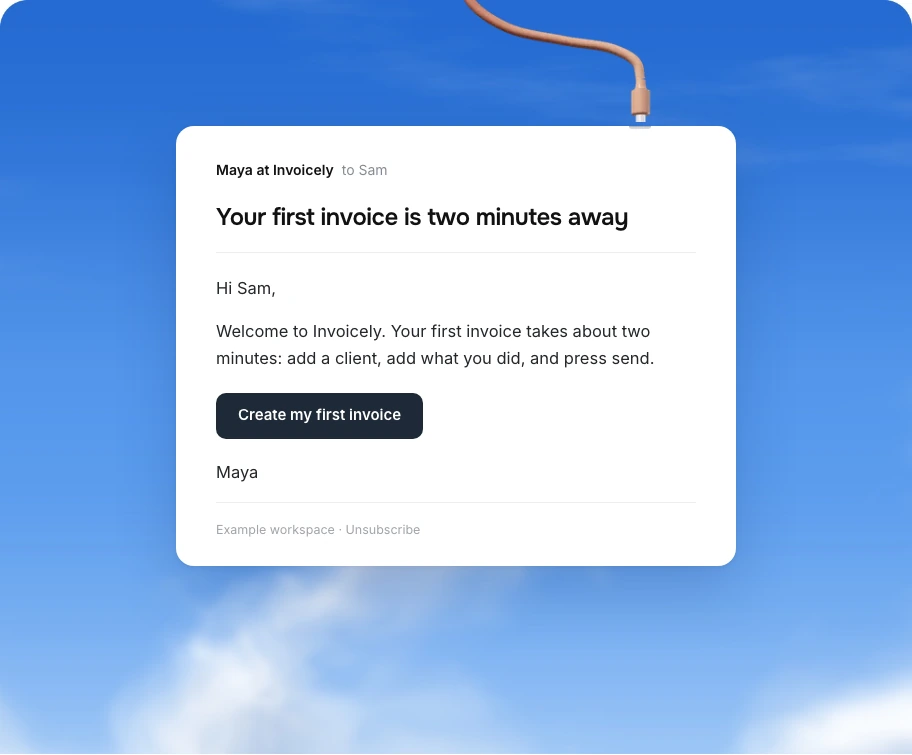
Write a subject line that names the task
A welcome subject needs to identify the product or the useful action clearly enough to make sense in an inbox. You do not need a clever phrase when the customer is still trying to understand what they signed up for.
Here are options organized by the situation they fit:
| Situation | Subject to adapt | Check before using it |
|---|---|---|
| Simple first task | Create your first [object] in [product] | The task is available now |
| Technical setup | Connect [website or tool] to [product] | A connection is required |
| Personal welcome | Welcome to [product], [first name] | The name has a safe fallback |
| Existing team | You’ve joined [workspace] | The invitation was accepted |
| Trial begins | Your [product] trial has started | The trial really began |
| Return path | Your [product] workspace is ready | Access is active |
| Test environment | Try your first [product] test | A test mode exists |
| Specific help | Start with [small task] | It is the right first action |
Avoid claiming a time saving you have not checked. “Set up in two minutes” becomes frustrating when the user needs administrator approval or an external integration. You can describe the task without an unverified stopwatch promise.
Do not add “Re:” to make an automated welcome look like a reply. Google’s message formatting guidance says subjects and sender information should not mislead recipients. A welcome is useful enough to identify itself honestly.
Preview text should add one piece of information. “Welcome to Clearbook” paired with “Choose your available hours to begin” gives the reader more than using the same welcome sentence twice. Check it in an actual inbox, where truncation and sender names affect what appears.
Choose when the welcome is sent
A welcome usually belongs close to the completed signup because the person still has the task in mind. The precise trigger matters more than choosing an arbitrary number of minutes.
If the account is unusable until address verification, distinguish the verification message from the onboarding welcome. Avoid a button that sends the user to a screen they cannot access yet. When the product requires separate verification, test the full sequence as a new user.
For team products, use the relevant account event. A new workspace and a new member are different events. A person who belongs to several workspaces should not receive the same beginner introduction every time their membership changes.
Retries also affect sending. Your app may retry a signup integration when a request times out. Make sure that does not create repeated welcome messages for the same completed signup. Keep a durable record of the relevant event or enrollment, rather than relying on the request arriving exactly once.
If the user deletes the account before the message sends, the welcome should be suppressed. Review these edge cases before relying on a scheduled automation.
Make the email work on a phone
Use live text for the instruction and a button or link with a clear label. A screenshot can help explain a complex interface, but it should not be the only place the reader can find the action.
Keep the important content visible with images blocked. Some email clients delay image loading, and a large decorative header can push the useful instruction below the first screen. A simple design is a reasonable first choice for a setup message.
Test the link with a logged-out session. Does sign-in preserve the intended destination? Is the destination usable on mobile? If the actual setup needs a desktop, say so before sending someone into a screen they cannot use on their phone.
Check the greeting with an empty name, an accented name, and a name long enough to wrap. Escaping dynamic values matters in HTML email too. User-supplied values should appear as text, not become markup.
Finally, send replies to a mailbox someone reads. “Reply if you need help” is a practical action only when it reaches a team that can help.
Measure what happens after the click
Choose a success event tied to the task in the email. For Clearbook, it might be a booking page being published. For Signalwell, it might be the first verified site event. Track whether eligible recipients achieve that result within a consistent window.
A click tells you that someone followed a link. It does not tell you the setup succeeded. The page may have failed, the session may have expired, or the customer may have needed information they did not have. Compare clicks with completed actions to find those gaps.
Treat open rates as supporting context. Apple documents that Mail can fetch remote content in the background, so an apparent open is not reliable proof of reading. A completed product action gives you a better reason to skip the next reminder.
For a small product, read support replies and test the task yourself alongside the numbers. One broken destination can explain more than a subject-line experiment. If you do test subjects, keep the task and destination consistent so you can interpret the result.
Review the welcome before you enable it
- Create a new account and confirm the email arrives after the correct signup or verification event.
- Read the email on a phone with images blocked and personalization fields missing.
- Open the button while logged out and complete the intended task after signing in.
- Confirm a repeated signup request does not send an unwanted second welcome.
- Reply to the message and verify that the right person receives it.
PennyPost’s free onboarding email generator can create a welcome and four follow-ups from your public app URL. Use the drafts to avoid starting from a blank page, then check product claims and connect the actual signup trigger. A draft based on a website cannot know whether an individual account has finished setup.
Questions about SaaS welcome emails
Is a welcome email the same as a verification email?
A verification email asks someone to confirm control of an address. A welcome introduces the product and helps them begin. If your flow needs both, make the purpose of each clear and avoid sending instructions that cannot work until verification is complete.
Should the founder sign the welcome?
Use the identity that accurately reflects the sender and reply process. A founder-signed email is appropriate when the founder stands behind it and the inbox is handled as described. A team signature is also useful and avoids creating a personal support promise the business cannot meet.
Does every welcome need a discount?
No. A new user often needs help reaching a result more than a discount. Introduce pricing or a promotion only when it is relevant and accurate. The first welcome can focus entirely on the task that motivated the signup.
What should follow the welcome?
Send a setup reminder only if the first action remains incomplete, or offer the next relevant step when the customer succeeds. The onboarding sequence guide shows how to connect those messages without treating every signup the same way.